Preservation
CurateTM features a highly automated digital preservation service that wraps the open source tool A3M into a dynamic workflow. Curate preservation workflows are highly configurable, simple to action, and automate the process of performing best-practice preservation and packaging actions on your files and folders.
About A3M
A3M is an open-source tool, developed by Artefactual SystemsTM, that distills the essential preservation and packaging functionality of their widely-used platform ArchivematicaTM into a specialised module. By removing unneeded components like the backend storage management and frontend-application while maintaining the same core code that powers digital archiving programs across the globe, A3M is able to provide reliable, comprehensive preservation and packaging functionalities in entirely new contexts.
Explore the A3M GitHub repository
A3M and Archivematica are trademarks of Artefactual Systems Inc.
A3M Benefits
Some key benefits of using A3M for digital preservation include:
- Standards compliance: A3M fully supports the OAIS reference model, creates valid and well formed METS documents, and produces AIPs that conform to the BagIt specification.
- Comprehensive format support: A3M's default Format Policy Registry (FPR) covers a wide range of file formats, from common office documents to complex multimedia files.
- Extensibility: A3M's modular design makes it easy to add support for new formats, tools, and workflows as needs evolve.
- Community-driven development: As an open-source project, A3M benefits from the contributions and expertise of a diverse community of users and developers.
A3M and Archivematica are trademarks of Artefactual Systems Inc.
The Format Policy Registry (FPR)
At the heart of A3M's preservation workflow is the Format Policy Registry (FPR). The FPR is a centralised knowledge base that contains information about file formats and the optimal tools and strategies used to perform preservation and access normalisation on them.
The FPR consists of three main components:
- Format database: A comprehensive registry of file formats.
- Tool database: A curated collection of open tools used for normalisation.
- Policy rules: A set of customisable rules that map specific file formats to their recommended normalisation actions.
A3M and Archivematica are trademarks of Artefactual Systems Inc.
By leveraging the collective knowledge and best practices encoded in the FPR, A3M is able to make informed, standards-based decisions about how to best preserve your digital content for the long term.
Customising the FPR
While the default FPR in Curate provides excellent coverage for a wide range of common file formats, we recognize that every institution has unique needs and priorities when it comes to digital preservation. That's why we've made it easy to customize the FPR to better align with your specific requirements.
Whether you need to add support for niche or proprietary formats, fine-tune the normalisation rules for certain content types, or integrate new preservation tools into your workflow, the FPR in Curate can be fully tailored.
If you are an existing Archivematica user migrating to Curate, we can even use your existing customised FPR as a drop-in, ensuring a smooth transition and continuity of your preservation practices (provided your Archivematica installation is reasonably up-to-date).
To discuss customising the FPR for your Curate instance, please contact our support team. We'll work with you to understand your unique requirements and implement the necessary changes to your A3M FPR.
By combining the robustness and reliability of A3M with the flexibility and extensibility of the Curate platform, Curate enables you to implement a best-in-class digital preservation solution in an intuitive and reliable wrapper.
Preservation Configs
The preservation workflow in Curate is highly customisable. You can choose to enable, disable or modify various parameters related to the handling of your content:
-
Config Name: The reference name given to your custom config, as it will appear in your list of available preservation configs when preserving an item. You should make your config names unique.
-
Config Description: A brief description of your customised config to let you or your colleagues know what it's purpose is.
-
Normalise Objects: Enable or disable the normalisation process for objects in your preservation selection
-
Image Normalisation Format: Select your preferred format for image normalisation.
-
AIP Packaging Type: Select the output packaging format of your workflow AIPs.
-
standard: Standard bagit AIP packaging
-
EARK: Package AIPs in line with the EARK specifications. Read more about EARK here.
-
Compress AIPs: Whether to apply a compression algorithm to your output AIP object.
-
Compression Algorithm: Compression algorithm to apply to AIPs.
-
Compression Level: Level of compression to apply to AIPs.
-
Generate Transfer Structure Report: Generate a report about your incoming objects before preservation actions are applied to them
-
Document Empty Directories: Create an entry in the AIP METS Structmap for empty directories within your preservation selection before they are deleted.
-
Extract Packages: Any package objects (like .zip files) within your preservation selection will be extracted to a folder before your content is preserved.
-
Delete Packages After Extraction: The original package object referenced above will be deleted once its contents has been extracted, otherwise the original package object is preserved along with its extracted contents
The system comes packaged with a default preservation config which is enacted when you choose the standard "Preserve" option in the UI (see preserving files and folders), and should be appropriate for most use-cases. If you would like to create a customised configuration that modifies any of the parameters described above, Curate provides an intuitive interface for customising, saving and editing your own preservation configs.
Creating a config
To create a new preservation config, first select the main user dropdown in the top left-hand corner of the Curate interface by clicking this icon:
From the dropdown, select "Preservation Configs" to open the configs menu.
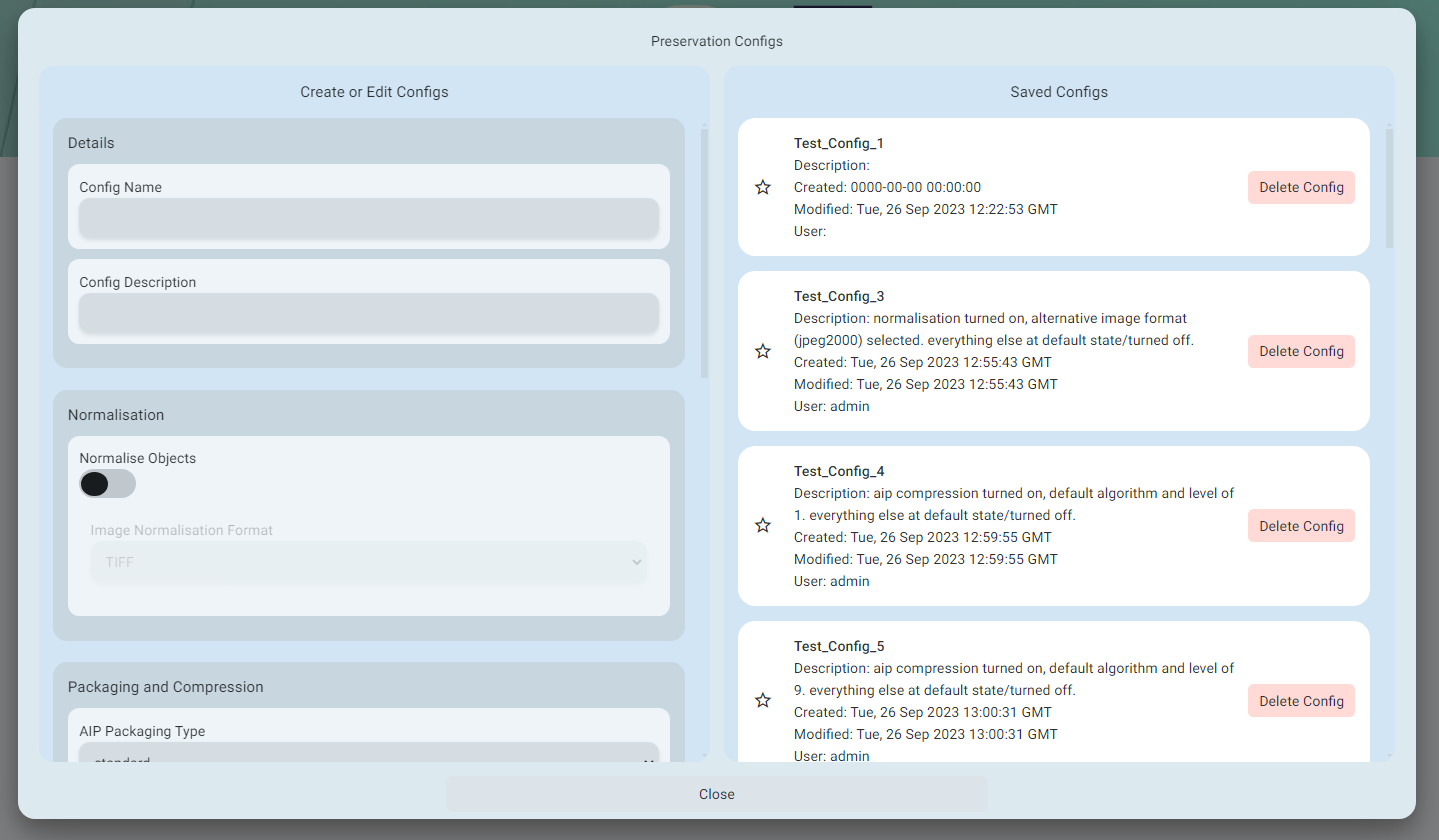
On the left hand side of the menu, you will find all the controls for creating new configs or editing existing ones. On the right, you will find a list of all of your saved configs. (see modifying configs)
To create a config, simply customise your desired parameters in the left hand area and then give your new config a name in the "details" box. Once you have entered a name, you will see the "Save config" button appear. Once you've hit "save", your configs will be reloaded and you will see your new config slide into the list of saved configs on the right.
Modifying a config
To modify your saved configs, navigate to the preservation configs menu, locate your saved config in the "Saved configs" area on the right of the menu, hover over and click your config to load it into the working area on the left of the preservation configs menu.
Once the details of your saved config have loaded, you may begin to modify it's parameters and you will notice the "Save" button appear. Click the "save" button to write your new changes into the saved config.
Preserving Files and Folders
Initiating digital preservation on any of your content in Curate is incredibly straightforward. Whether you want to preserve a single file, a folder, or multiple files and folders, the process is the same. Simply navigate to the content you'd like to preserve in your Appraisal workspace (see Appraisal Space), select it, right-click, and choose "Preserve".
Each individual item in your selection will be processed and transformed into an archival information package (AIP). If you select a single file or folder, it will be transformed into a single AIP. If you select multiple individual files or folders, they will be transformed into individual AIPs. If you select a folder containing multiple files or folders, all the contents of the folder will be wrapped into a single AIP.
Choosing "Preserve" will launch the default preservation config on your selection. You will receive a confirmation message indicating that your request was received and that Curate will now handle the rest of the preservation process.
As Curate begins to execute the various steps in the preservation workflow, you will see status updates appear as tags on your selected content. These tags allow you to easily track the progress of the preservation process. Once Curate has finished processing your selection, a final "Preserved" tag will be applied to indicate the successful completion of the workflow.
Using Custom Preservation Configs
In addition to the default preservation config, Curate allows you to create and use custom configs that define specific preservation parameters (see Creating Configs). To initiate a custom config on your selection:
- Right-click your selected content
- Choose "Preservation Configs" from the context menu
- Select your desired config from the list of custom configs to initiate the preservation workflow with the chosen config
- The rest of the process is identical to using the default config. Curate will execute the preservation workflow according to the parameters specified in your custom config.
The Core Preservation Process
Under the hood, Curate leverages the power of A3M (see about A3M) to perform the key preservation actions in its workflow. These actions ensure the long-term accessibility and integrity of your digital content.
Characterisation
A3M uses a set of specialised tools to analyze your files and extract detailed technical metadata about their format, structure, and properties. This metadata is crucial for informed preservation planning and decision-making. The extracted metadata is stored in the AIP's METS file, providing a complete technical description of the preserved content.
Characterisation Tools
A3M utilizes the following industry-standard tools for file characterization:
- FFProbe: A powerful multimedia stream analyzer that provides detailed information about audio and video files.
- MediaInfo: A versatile tool that extracts technical and tag data from video and audio files.
- ExifTool: A comprehensive metadata extraction tool that supports a wide range of file formats.
- Fiwalk: A command-line tool for analyzing and extracting metadata from disk images and file systems.
Normalisation
Normalisation is the process of converting files to standardized, preservation-friendly formats that are more likely to remain accessible over the long term.
A3M determines the appropriate target format for each file based on the Format Policy Registry (FPR) (see the FPR section for more), a comprehensive knowledge base that maps file formats to recommended preservation actions. By consistently applying these normalisation rules, Curate helps ensure the future renderability and usability of your content.
Normalisation Tools
Depending on the type of content being preserved, A3M employs different tools for normalisation:
Image Files
Audio-Visual Files
Document Files
Validation
The final step in the core preservation process is validation. A3M performs a series of checks to ensure the integrity and completeness of your preserved content. This includes verifying checksums to detect any data corruption, as well as validating file formats to ensure compliance with preservation standards.
Validation provides an added layer of assurance that your content has been accurately preserved and will remain accessible over time. Any issues detected during validation can be caught for review and remediation.
By combining robust characterisation, normalisation, and validation, Curate's A3M-powered workflow ensures the highest levels of digital preservation for your valuable content. The end result is a standards-based, fully-described Archival Information Package (AIP) that can be confidently stored and managed for the long term.