Application Areas
Home Screen
When you log in to CurateTM you will see the home screen as shown below and you will be guided through a short welcome tour. The home screen provides you with links to recent content, and ways to navigate through the rest of the application.
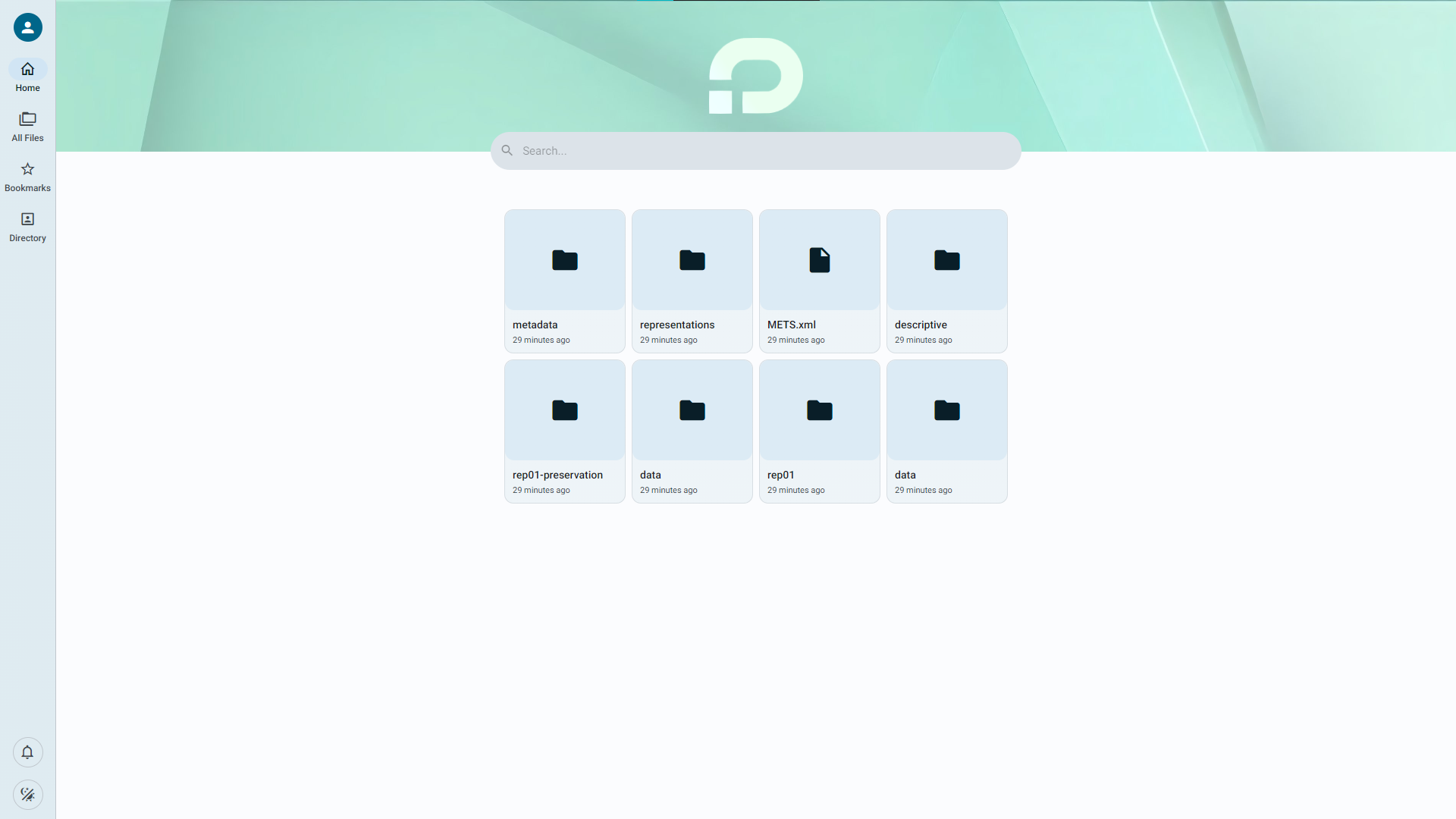
In the centre-top of the home screen, you will find the search bar. At the far left, you can see the navigation panel.
You can find your account settings and preferences, as well as the option to log out, by clicking on the profile icon in the navigation panel.
Beneath that is the home button, which will return you to this screen.
At the bottom of the navigation panel, you can find your notifications centre by hovering over the bell icon.
You can also switch between light and dark colour modes with the toggle at the very bottom of the navigation panel.
Bookmarks
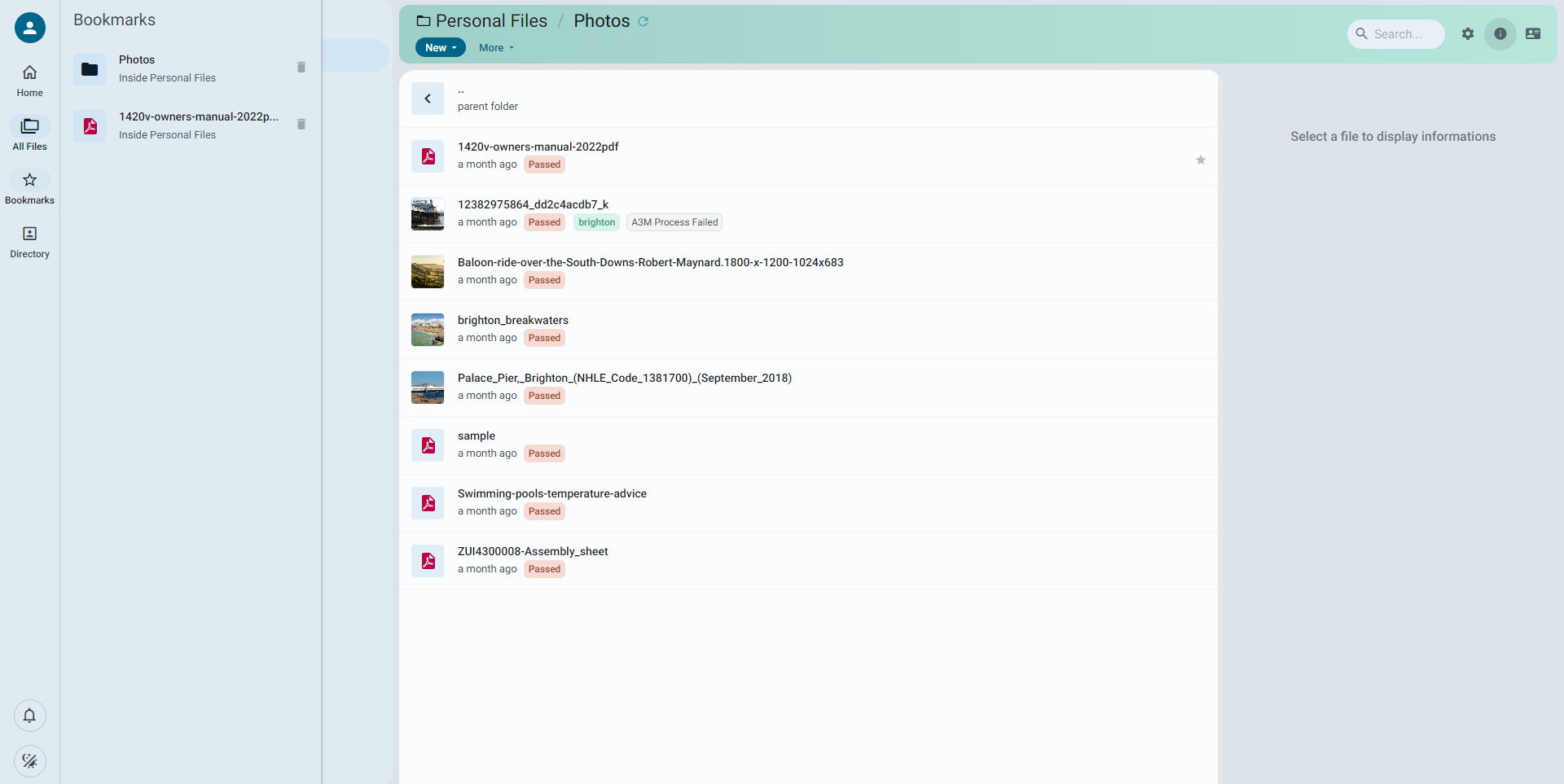
The bookmarks tab can be accessed from the icon in the navigation panel.
The bookmarks tab keeps references to all the files and folders you have
saved using the "bookmark" feature (see bookmarking a file or folder).
Clicking one of the items will navigate you to its location in Curate.
If you want to remove an item from your bookmarks, click the  icon
next to the item you wish to remove.
icon
next to the item you wish to remove.
Workspaces
To open your workspaces panel, hover over the "All Files" button in the navigation panel.
You will see the following spaces:
-
Personal files
-
Quarantine Space
-
Appraisal Space
-
Archive Space
-
Common Files
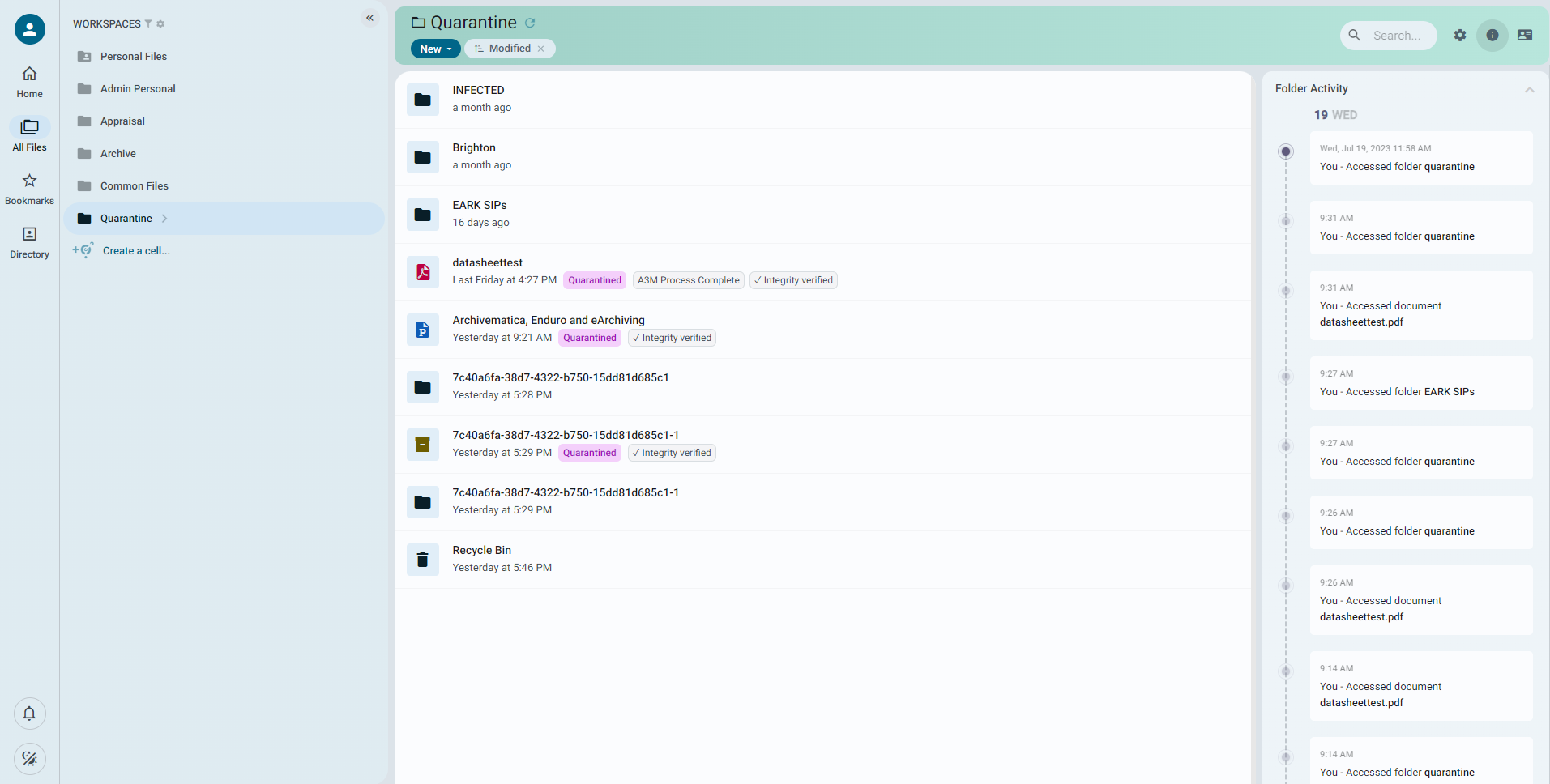
Workspaces are where you perform your eArchiving workflow within Curate, and where you'll be able to describe, arrange and eventually preserve your objects.
Each workspace can be individually encrypted at the data source and given its own independent fixity checking schedule.
Each workspace has a defined function, here is a quick explanation of what each workspace is for:
Personal Files
This is a workspace that is only visible to you and not to other members of your workgroup. You can upload files or folders to this space for your own personal content, which would not normally be part of a group archive.
Files uploaded into Personal are virus checked once and cannot be moved out into any other area of CurateTM.
If you have files in Personal that you later want to add to the archive, you will need to re-upload into Quarantine, or if you don't have a local copy, download from Personal and then re-upload into Quarantine.
Files in Personal are not characterised, but you do have basic file information available and you can add descriptive metadata. Note that file downloads do not include descriptive metadata so the Personal workspace should not be used for appraisal or arrangement of archival content.
Quarantine Space
Content that is to be appraised and arranged in CurateTM should be uploaded into the Quarantine workspace (see upload and ingest for more information). This is a shared workspace and so is visible to all members of a workgroup. Uploaded files are virus checked and quarantined for 30 days. It is recommended that files should not be moved from the Quarantine workspace until the quarantine period is up, however CurateTM is not prescriptive and you can choose to move files out early if you wish.
If the virus scanner detects a virus or malware then the affected file will be moved to a folder called Infected within the Quarantine workspace.
After the 30-day quarantine period and a second successful virus scan, files are moved automatically into the Appraisal space and labelled "Released".
Appraisal Space
Files moved to the Appraisal space are characterised by the open-source file characterisation tool Siegfried, which generates a file type unique identifier from the PRONOM registry of filetypes maintained by the National Archive (see https://www.nationalarchives.gov.uk/PRONOM/).
Once Siegfried has completed its analysis, the identified PRONOM ID is added to the file information area. Clicking on the PRONOM ID will open a new tab in your browser linked to the PRONOM registry page with more detailed information on the file format.
Within the Appraisal workspace you can move, copy and delete files, create folders and add descriptive metadata. Using detailed file information you can make appraisal decisions. From the appraisal space, you can also preserve and package your objects in any configuration you wish. See appraisal preservation and packaging for more information.
Archive Space
Files and folders can be moved to the Archive workspace for long-term retention. The organisation of the workspace is up to you, but the search function can help any system you have by allowing simple searches on filenames or advanced searches on descriptive metadata. AIPs generated by the preservation process are also uploaded to the Archive workspace by default.
Common Files Space
The Common Files space is a shared area within a workgroup that can be used to store shared reference documents and files, for example: user guides, references, submission agreements, metadata schemas etc.
Object information area
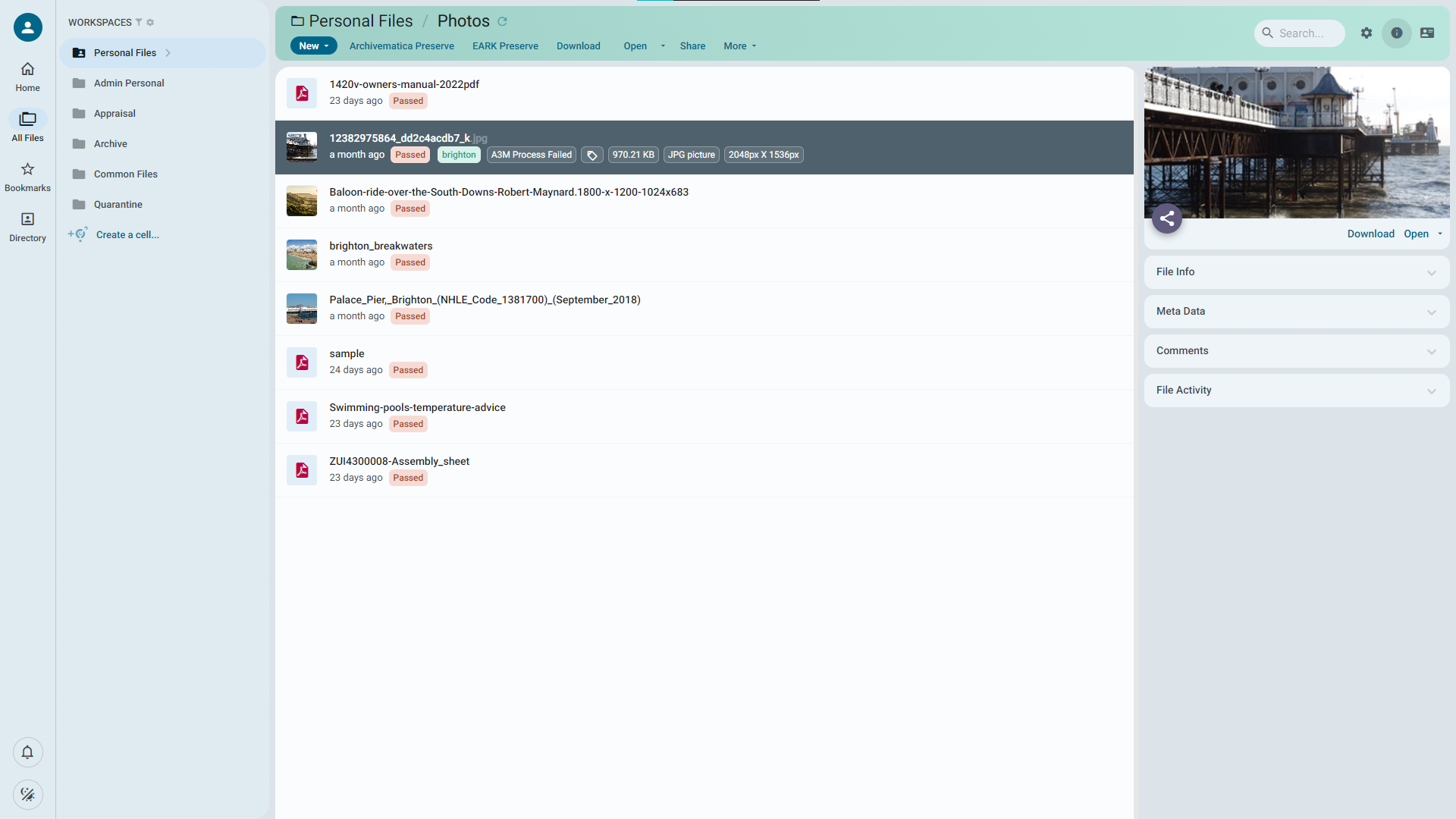
The object information area provides you with all the critical details about a file or object inside Curate. The object information area will appear on the right-hand side of the screen when you select a single file or folder.
Object information area panels
File actions panel
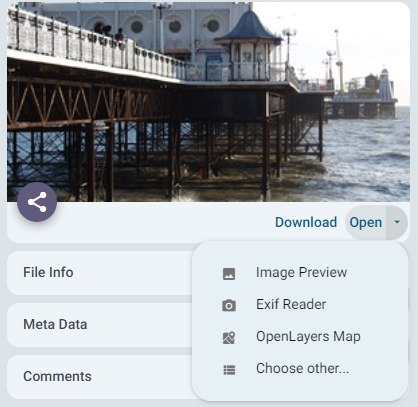
The first panel in the object information area is file actions, which shows a preview of the object you have selected and presents options to share, download, or open the file in one of Curates rendering tools.
File information panel
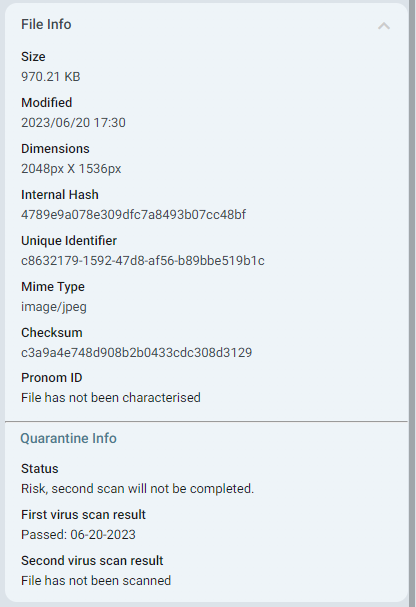
The file information panel lists all the basic characteristics of the selected object, along with the quarantine status, scan results and detailed characterization information when the file has been appraised.
Extracted metadata panels; EXIF etc
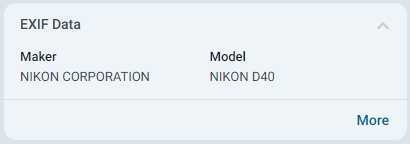
When you select a file that includes some additional technical metadata, like a photograph with EXIF, Curate will automatically extract it and display it in a new card in the object information area. Click on "more" to view the full extracted EXIF data.
Metadata panel
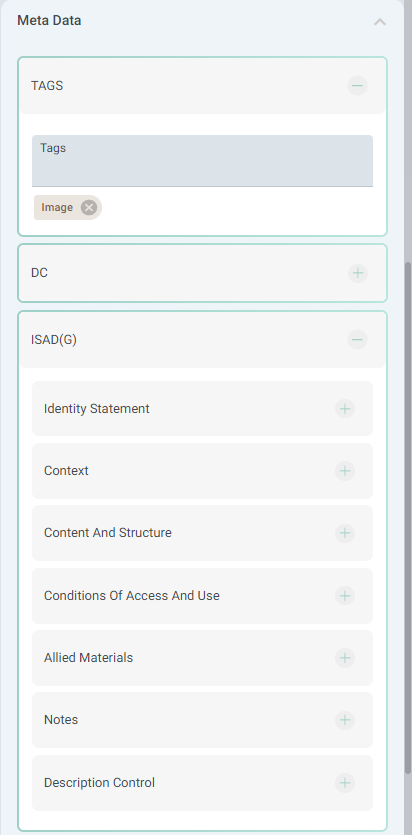
Clicking on any file or folder in Curate will open the metadata panel in the object information area. The Curate metadata panel comes with simple 15 field Dublin Core and 26 field ISAD(G) schemas built in. Any additional standardised or customized schemas can be supported upon request. There is also a field for custom tags, which are displayed as colourful tags in the file list.
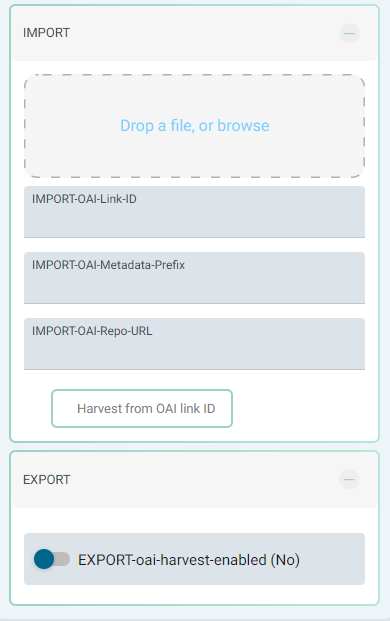
The metadata panel also contains the "import" and "export" sections. The import section allows you to import external DC, ISAD or any other associated meta file to an object. It also provides fields for entering the details of an external OAI-PMH record, from which you can harvest and import its metadata. See importing metadata for more. The export section allows you to make an object harvestable via your Curate systems OAI-PMH server. See exporting records for more detail.
Comments
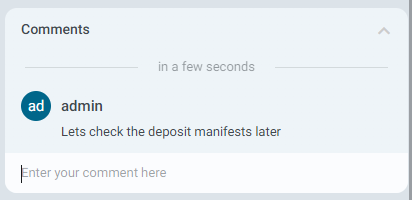
Each object in Curate has its own comments section that lets you leave notes or comments for yourself or your colleagues.
File activity
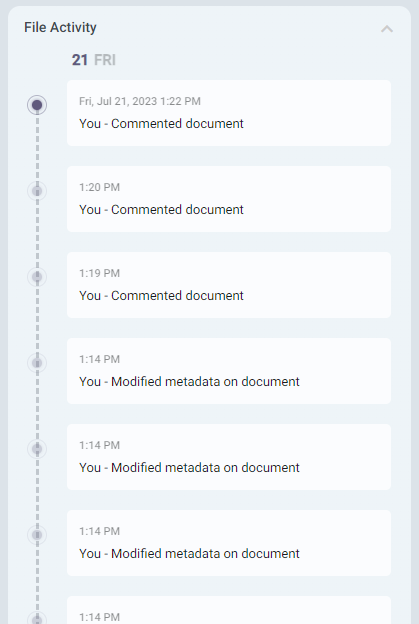
The final panel in the object information area, when a file or folder is selected in the file list, is the file activity panel. The file activity panel records and displays a log of all the actions and modifications taken that relate to the selected object. Please note that the activity stream does not record PREMIS preservation events. Those are recorded internally. See PREMIS in Curate for more information.