Integrations
Access to Memory (AtoM)
Curate integrates with AtoM, an open-source archival description management system, to allow you to upload your content into AtoM and link it to descriptive records. This integration allows you to search for and connect your content to existing archival descriptions directly from Curate, offering a more direct and efficient workflow for your archival descriptions.
- A correctly configured AtoM site (see intructions below).
- Administrative access to your organisations AtoM site, or help from someone who does.
- An account on your organisations Curate Enterprise system with a user-admin tier role.
- The URL of your AtoM site.
- 1-2 hours of time.
Setting up AtoM
Setting up AtoM (AtoM Self-Hosted)
To connect your Curate instance to AtoM, you will first need to follow the standard installation instructions for AtoM (see AtoM installation instructions). Once AtoM is installed, you will need to correctly configure AtoM to enable the Sword API (see AtoM Sword API configuration). Once AtoM is installed and configured, please proceed to the following section connecting to AtoM
NB: the configuration steps reference ArchivematicaTM, but the same process can be used with Curate. Please see the above warning for more information about configuring SSH keys between Curate and AtoM.
Explanation
Curate takes advantage of the Sword protocol to communicate with AtoM. This protocol allows AtoM to receive and process dissemination packages (DIPs) directly from Curate. The sword API is the mechanism AtoM internally uses to communicate DIP processing requests with its companion digital preservation system, ArchivematicaTM. This enables Curate to streamline the process of uploading content into AtoM, and then linking it to existing archival descriptions.
Setting up AtoM (AtoM Hosted by your Curate Provider)
If you are using AtoM hosted by your Curate provider, you will need to contact your provider to discuss the creation of SSH keys between your Curate and AtoM instances. If you are a new customer looking to integrate AtoM with Curate, please contact your Curate provider during your onboarding process to inform them of your requirement and the connection will be ready for you when you are given access to the system. If you are an existing customer who is now looking to integrate a hosted AtoM site with Curate, please create a support ticket and a representative will be in touch to configure the connection. Once you have access to your AtoM instance, proceed to the following section connecting to AtoM.
Connecting to AtoM.
Once you have completed the configuration steps for your AtoM instance, you will need to create an AtoM user that Curate can use to make requests to your AtoM instance and store the required details in the AtoM connection menu inside Curate.
The required details are:
- AtoM URL
- Username
- Password
- AtoM API Key
Please follow the linked instructions to create an AtoM user with at least the "Editor" role, though "Administrator" is recommended. You may need to contact your AtoM administrator if you do not have sufficient privileges to create a user account. (see AtoM Add a New User).
You can name this user whatever you like, but it is recommended that you give it a descriptive name that indicates its purpose. For example, you could name it "Curate AtoM User".
Next, you will need to generate an API key for your AtoM user. You can do this by following the instructions in the AtoM API Key section of the AtoM user manual.
Once you have completed these steps, log in to your user-admin Curate account and open the AtoM connection menu by clicking on your user avatar in the top left-hand corner of the Curate interface (it's the same menu you log-out from) and selecting "Connect to AtoM".
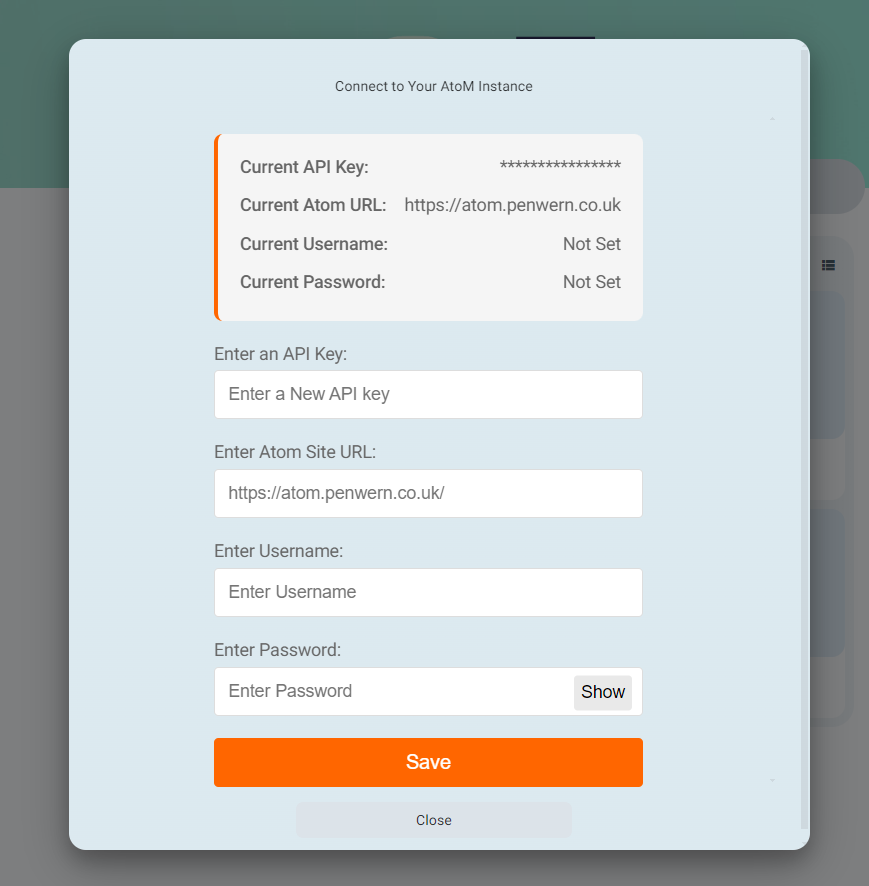
Next, enter the details you've gathered in the previous steps into the appropriate fields. Once you have entered all of the required details, click "Save" to save your connection details. This information is encrypted in transit by the SSL protocol and is securely stored in your Curate database. Only an organisational user-admin can access or update this information.
Once you have configured AtoM and entered the required details, you're all done! You can now start using AtoM with Curate. Proceed to the next section for usage instructions Sending DIPs to AtoM.
Sending DIPs to AtoM
If you have not yet configured AtoM, please follow the instructions in the previous sections Setting up AtoM before proceeding.
Curate makes the process of generating dissemination packages (DIPs) and sending them to AtoM simple and requires no additional modification of your preservation configurations. The first step is to link an object or hierarchy of objects that you would like to generate a DIP from to an existing AtoM description.
Linking an object or hierarchy of objects to an existing AtoM description
To link an object or hierarchy of objects to an existing AtoM description, you can either:
- Select a single object or hierarchy of objects, select the "more" menu in the main file-list control bar and then click the "Link to AtoM Description" button. This will open a dialog box that allows you to search for an existing AtoM description and link the selected object(s) to it.
- Select multiple objects or hierarchy of objects, select the "more" menu in the main file-list control bar and then click the "Link to AtoM Description" button. This will open a dialog box that allows you to individually link each object to an existing AtoM description. Clicking the "Link" button will open the AtoM description search dialog box and allow you to search for an existing AtoM description and link the selected object to it. Once you have selected an existing AtoM description, you will be moved back to the first dialog box with your multiple object selection and you can continue to link the remaining objects.
Once you have linked your objects to an existing AtoM description, you will see a tag with the prefix "linked description" next to the object in the file-list that records the slug of the linked description.
Generating a DIP
Once you have linked an object or hierarchy of objects to an existing AtoM description, you can generate a DIP for it by selecting the object or hierarchy of objects, right clicking and clicking the "Preserve" button. Curate analyses each of your selected objects and generates a DIP when it finds a selection with a suitable linked description. It will then automatically generate a DIP during the preservation workflow and send it to AtoM for processing. Whilst the preservation workflow is running, you will see a status tag appear next to the object in the file-list that records the status of the DIP generation and processing.
Once your objects have been successfully preserved, you will see the "preserved" status tag appear next to the object in the file-list. This means Curate has generated both an AIP and a DIP for the object, and that the DIP has been sent to AtoM for processing.
ArchivesSpace
Curate integrates with ArchivesSpace, an open-source archival management system, to support a linked preservation workflow. From within Curate, you can browse your ArchivesSpace repositories, navigate archival hierarchies, and select a record to link to. Curate then creates a folder linked to that ArchivesSpace record. When the folder is later preserved, Curate automatically writes digital object instances back into ArchivesSpace, representing the preserved content and associating it with the relevant archival description.
- A Curate account on a system where the ArchivesSpace integration has been enabled by your administrator.
- Access to the ArchivesSpace repositories you wish to link to.
Launching the ArchivesSpace Browser
The ArchivesSpace browser is accessed from the main file list in Curate.
- Navigate to the folder in Curate where you want the linked folder to be created.
- Click the "More" button in the file list toolbar (the toolbar above your files and folders).
- Select "Link ArchivesSpace folder" from the menu that appears. The ArchivesSpace browser will open.
Browsing ArchivesSpace
The browser opens on the Browse tab, which is organised into three levels. You navigate through them in sequence to find the archival record you want to link to.
Repositories
The first level shows all available repositories as cards, each displaying the repository's name, code, location, and number of collections. Click a repository card to view its collections.
Collections
The second level shows the collections within the selected repository. Each card displays the collection's title, identifier, date range, and extent. Click a collection card to open its archival hierarchy.
Archival hierarchy
The third level displays the records within the collection as a tree. Click the arrow beside any record to expand its children and explore the hierarchy. Click a record to select it and view its details in the panel on the right-hand side of the browser.
Searching and Filtering
Searching within a collection
When viewing a collection's archival hierarchy, use the search box at the top of the browser to find records by keyword. Matching records are highlighted in the tree and shown as a list. Use the navigation arrows (showing your current position, e.g. 3/42) to step through search results.
By default, searches look across all fields. Click the dropdown to the left of the search box to restrict the search to a specific field, such as title, identifier, or status.
Global search
To search across all repositories without navigating the hierarchy first, use the Search tab at the top of the browser.
Filtering
Click the Filters button to refine the results shown. Available filters are:
- Level – Show only records at a particular archival level (e.g. Collection, Series, File, Item).
- Status – Show only records with a particular condition or access status: Available, Needs Attention, or Restricted.
- Scope (when searching within a hierarchy) – Limit the search to the subtree of the currently selected record, rather than the entire collection.
- Advanced – Enter custom filter criteria using ArchivesSpace Lucene filter syntax.
Active filters are shown as chips below the search bar. Click the × on a chip to remove that filter, or use the Clear button inside the filters panel to remove all active filters at once.
Tree and flat list views
When browsing a collection hierarchy, use the Tree and Flat buttons in the top-right of the browser to toggle between a hierarchical tree view (the default) and a flat list view of all records in the collection.
Selecting Records
Click any record in the tree or flat list to select it. The record's details will appear in the panel on the right.
To select multiple records, use the checkbox on each record. Your selection count is shown at the top of the detail panel. Use the carousel arrows in the detail panel to move through your selections and review each one. To remove a record from your selection, uncheck it. To clear your entire selection, use the Clear button in the detail panel.
Creating a Linked Folder
Once you have selected one or more records, configure the options in the detail panel and click Create Folders. Curate will create the linked folder or folders in the location you navigated to before opening the browser. When a folder is later preserved, Curate will automatically update ArchivesSpace with digital object instances representing the preserved content.
Detail level
The detail level controls how the preserved files within a folder will be represented in ArchivesSpace after preservation.
- Per File (default) – Each file within the preserved folder receives its own representation in ArchivesSpace. There are two sub-options for how these per-file representations are organised:
- Components (default) – All file representations are grouped together as components of a single digital object. This keeps the ArchivesSpace record compact, with all files together under one entry.
- Records – Each file receives its own independent digital object, linked directly to the archival record. Choose this option if each individual file represents a distinct intellectual item.
- All Records – All preserved files are represented by a single digital object in ArchivesSpace, regardless of how many files the folder contains. Choose this option when the folder as a whole, rather than its individual files, is the meaningful unit of description.
Container type
The container type controls which ArchivesSpace record the preserved content is linked to.
- Digital Object (default) – Digital object instances are linked directly to the archival record you selected.
- Archival Object – A new item-level archival record is created as a child of the record you selected, and digital object instances are linked to that new record instead. Use this option when you want the preserved folder to be represented as a new, distinct level of description within your archival hierarchy. When this option is selected, you can enter a name in the Folder name field to use as the title of the new archival record; if left blank, the folder's name in Curate will be used.
What appears in ArchivesSpace after preservation
Once a linked folder has been preserved, Curate automatically updates the corresponding ArchivesSpace record. What you will see in ArchivesSpace depends on the options you chose when creating the folder:
- Digital Object container (default): One or more digital objects appear as instances on the archival record, with links pointing back to the preserved content in Curate. The number and structure of those digital objects reflects the detail level you selected.
- Archival Object container: A new item-level record appears as a child of the original archival record, and the digital objects are linked to that new record rather than the original.
If a preserved folder is re-preserved, Curate will update the existing ArchivesSpace records rather than creating duplicates.
Single Sign-On
Curate provides a complete embedded user authentication solution with an internal user directory that should be sufficient for most business cases. However, if you wish to use an external identity provider, such as Google, Microsoft Entra or LDAP, you can do so by configuring your Curate instance to use SSO.
Curate offers several single sign-on (SSO) options for your users. This means that you can log in to Curate using your existing identity provider (IdP) and have your user details automatically populated into Curate. This is particularly useful for organisations that have a central identity provider such as an LDAP server, Google Accounts or Microsoft Entra, and want to allow their users to log in to Curate with the same credentials they use for your other systems or services.
Microsoft Entra (formerly Azure AD)
Microsoft Entra is a cloud-based identity provider that allows you to manage your users and their identities in a single place. Many organisations already use Microsoft Entra to manage their users.
The setup in this section uses OpenID Connect (OIDC). If your organisation requires SAML 2.0 instead, follow the SAML 2.0 guide, which includes a separate Microsoft Entra walkthrough.
This guide attempts to provide a comprehensive walkthrough for setting up Curate with Microsoft Entra as your IdP. If you would like to read additional information about Entra or would like an additional resource to guide you through this process, please visit the Microsoft Documentation for setting up Entra app registrations: Microsoft Entra app registration documentation
If you are using Microsoft Entra as your IdP, you will need to follow the steps below to enable Curate to use it as your SSO provider.
- Administrative access to your Entra ID tenant (with at least a "Cloud Application Administrator" role), or help from someone who does.
- Assistance from the Curate support team to enable Entra ID as an identity provider for Curate.
- 15-20 minutes of time.
Registering Curate as an Application in Entra
To use Microsoft Entra as your SSO provider, you will first need to register Curate as an application in your Microsoft Entra tenant. To do so, you will need to follow the steps below:
-
Log in to your Entra ID as an administrator and access the Entra admin center (see Entra admin center).
-
Use the settings icon in the top menu to switch to the tenant (where applicable) you would like to register the application from.
-
Expand the Identity section in the left-hand menu
-
Expand the Applications section and select App registrations option.
-
Select "New registration" from the top menu.
-
Enter a descriptive display name for Curate in the "Name" field. This can be whatever you like, but it's recommended that you use one similar to "Curate" or "Curate Enterprise".
-
Select the supported account types for Curate. This should generally be "Accounts in this organizational directory only (Microsoft only - Single tenant)" for most configurations. If you are unsure what to select or believe you may require a different option, please contact support for assistance unless you are absolutely sure.
-
Configure the callback URL (optional):
-
You can at this point choose to add the callback URL for your Curate instance, or you can leave this blank for the time being.
- If you do add a callback URL, you will need to configure your logout URL in the next section.
-
If you are unsure, please leave this option blank and follow the instructions in the next section.
-
Select "Register" to create the application.
Configuration Details
| Field | Required Value | Notes |
|---|---|---|
| Name | "Curate" or "Curate Enterprise" | Choose a descriptive display name |
| Supported account types | "Accounts in this organizational directory only (Microsoft only - Single tenant)" |
For most configurations. Contact support if unsure. |
| Redirect URI (optional) | https://www.exampleinstance.com/auth/login/entra/callback | Replace with your actual Curate instance URL |
Next Steps
After completing the registration process, you will need to proceed with the following steps:
- Generating a Client Secret
- Configuring Curate to use Entra as an Identity Provider
- Testing your Entra Configuration
Generating a Client Secret
Once you have registered your Curate application, you will need to generate a client secret for your application registration. To do so, you will need to follow the steps below:
-
Log in to your Entra ID as an administrator and access the correct tenant in the Entra admin center if you have not already done so (see Entra admin center).
-
Expand the Identity section in the left-hand menu
-
Expand the Applications section and select App registrations option.
-
Select the application registration we setup in the previous section
-
Select "Certificates & secrets" under the "manage" menu which can be found in the left-hand menu in the application registration details page.
-
Select "New client secret", which will appear above the empty list of client secrets.
-
Enter a descriptive name for your client secret in the "Name" field. This can be whatever you like, but it's recommended that you use one similar to "Curate" or "Curate Enterprise".
-
Select a sensible expiry date for your client secret. This is the period after which your client secret will expire and become inoperable and you will need to repeat both these and the following section of steps to restablish your SSO connection with Entra.
-
Select "Add" to create the client secret.
Once your client secret has been created, you will need to copy it to your clipboard. This is the only time you will be able to see the client secret, so make sure you copy it now.
It's also a good idea to record your client ID so you don't have to dig through the Entra admin center to find it again for the next section.
Configuring Curate to use Entra as an Identity Provider
Next, you will need to gather the following information from Entra so that Curate can connect to your new app registration:
Application (client) ID: This is the unique identifier for your application registration. This value is commonly referred to as the client ID in the OAuth2 protocol, but is also known as the Application ID in the Microsoft Identity platform. You can find this value in the application registration details page.
Client Secret: the secret value we generated in the previous section that allows Entra to verify your Curate instance.
Tenant ID: This is a unique identifier for your Entra ID tenant. You can find this value in the Entra admin center by expanding the "Identity" section in the left-hand menu and selecting "Overview" from the menu that appears. Please be careful to collect the ID for the correct tenant that we registered our Curate application in.
Once you have gathered these necessary details, you will need to deliver them to Curate support so that they can configure your Curate instance to use Entra as an identity provider. The best way to do this is to send them in an email to the support team.
In order to send your Entra details to Curate support securely, you will first need to encrypt the details using our public GPG key. If you are a new customer, please notify us of your requirement for Entra ID as an identity provider during your onboarding process, and you will be provided with a GPG key for encryption. If you are an existing customer who is now looking to integrate Entra ID with Curate, please create a support ticket and a representative will be in touch to configure the connection.
Once you have received the public PGP key, you will need to encrypt your Entra details using a tool like:
Gpg4win (Windows)
- Includes GnuPG for Windows, Kleopatra certificate manager, and GPA (GNU Privacy Assistant)
- User-friendly graphical interface
GPG Suite (macOS)
- Integrates with macOS Mail and includes GPG Keychain for key management
- Provides a smooth, native macOS experience
GnuPG (GNU Privacy Guard)
- Available for Windows, macOS, and Linux
- Command-line tool, but forms the basis for many graphical front-ends and is used by default in many Linux distributions and is often the quickest way to get started with GPG
Once you have encrypted your Entra details, you can then send them in the encrypted file to support via email. The Curate support team will acknowledge the reception and be able to decrypt the details and configure your Curate instance to use Entra as an identity provider.
At this point, if you decided to add the callback URL in the previous section, you will need to configure your logout URL in your Entra application registration. If you elected to leave the callback URL blank, you will need to configure both the callback URL and the logout URL. To do so, you will need to follow the steps below:
-
Log in to your Entra ID as an administrator and access the correct tenant in the Entra admin center if you have not already done so (see Entra admin center).
-
Expand the Identity section in the left-hand menu
-
Expand the Applications section and select App registrations option.
-
Select the application registration we setup in the previous section
-
Select "Authentication" under the "manage" menu which can be found in the left-hand menu in the application registration details page.
-
Select "Add a platform" under the "Platform Configurations" section.
-
Select "Web" from the "Configure platforms" menu that appears on the right hand side of the screen.
-
Enter the callback URL for your Curate instance in the "Redirect URI" field. This should be the URL of your Curate instance with the path "/auth/sso/callback/microsoft-entra". For example, if your Curate instance is at https://www.exampleinstance.com, then your callback URL would be https://www.exampleinstance.com/auth/sso/callback/microsoft-entra.
-
Select "Add platform" to add the callback URL.
-
You will see a new "Web" platform configuration in the "Platform Configurations" section which will list the callback URL you added in the previous step.
-
Under the platform configuration, you will see a "Logout URL" field. Enter the URL of your Curate instance with the path "/logout". For example, if your Curate instance is at https://www.exampleinstance.com, then your logout URL would be https://www.exampleinstance.com/logout.
-
You MUST then select both "Access tokens" and "ID tokens" under the "Implicit grants and hybrid flows" section. If you do not select these options, you will not be able to log in to your Curate instance using Entra.
-
Select "Save" to save your changes.
Testing your Entra Configuration
Once you have configured your Curate instance to use Entra as an identity provider, you can test your configuration by logging in to your Curate instance using an account that has been conferred access to the application registration that we set up in the previous sections. Federation of who in your organisation can access your Curate instance is managed by your Entra ID tenant, so you will need to ensure that your account has been conferred access to the Curate application registration.
Curate currently uses an honesty policy to ensure that you do not exceed your alloted quota of user licenses. This is because accounts within Curate are automatically created for new users at the point that they sign-in with their Entra details, and we do not require you to provide a list of users who you would like to access the application. This ensures you encounter minimal resistance when trying to onboard new/additional staff members into Curate.
If you have exceeded your quota, support will get in touch with your organisation to discuss your options. If you are unsure of your user quota or would like to add additional user licenses to your contract, please contact support.
If you do have a specific list of users that you would like to grant access to your Curate instance and want to prevent other users from accessing it, you can do so by using Microsoft Entra administration features like security groups. If your organisational structure or Entra setup prohibits you from doing this, you can contact support with your list of users and we will restrict access from any other user accounts.
At this point, you can log in to your Curate instance using the account that has been conferred access to the Curate application registration:
-
Navigate to your Curate instance. If you are not already logged in, you will be prompted to log in with one of the provided authentication options.
-
Select "Microsoft Entra" from the list of authentication options.
-
You will be redirected to the Entra ID login page. This will appear exactly as it does when you sign-in to any of your other connected services.
-
Enter your Entra ID credentials and select "Sign in".
-
You will be redirected back to your Curate instance home space.
All done! You can now start using your Curate instance with Entra. If you would like to configure security groups, please refer to the Security section of the User Guide.
Using Security Groups with Entra to Manage User Permissions
Security groups provide a centralised and scalable approach to managing user permissions within Curate. By creating groups in Microsoft Entra ID and mapping them to specific roles or permissions in Curate, organisations can streamline user access management while maintaining granular control over system capabilities.
This integration enables self-service permission management, reducing the need for support requests when adjusting user access. You can implement either role-based or permission-based approaches depending on your security requirements and organisational structure.
Permission Management Strategies
You can implement security group mappings using two primary approaches:
Role-Based Mapping: Create groups that correspond to complete Curate roles such as "Contributor" or "Administrator." This approach simplifies user management by assigning comprehensive permission sets through a single group membership.
Granular Permission Mapping: Create groups that map to specific permissions such as "Read" or "Write" access. This approach provides maximum flexibility, allowing you to construct custom roles by combining multiple group memberships.
Configuration Process
The initial configuration of security group mappings requires coordination with Curate support. Once established, your organisation can independently manage group memberships through the Entra ID administrative interface.
Implementation Steps
1. Create Security Groups in Entra ID
Begin by establishing the necessary security groups within your Entra ID environment:
- Access the Entra admin center and navigate to Identity > Groups > All Groups
- Select New Group to initiate group creation
- Configure the group properties:
- Group Name: Use a descriptive name that clearly indicates the group's purpose (e.g., "Curate-Contributors" or "Curate-ReadOnly-Access")
- Description: Provide a comprehensive description that explains the group's intended use and associated permissions
- Group Type: Select "Security" from the dropdown menu
- Configure group membership:
- You may add users immediately during group creation or manage memberships later
- Consider implementing dynamic membership rules if your organisation structure supports automated user assignment
-
Critical: Record the Object ID for each created group, as this unique identifier is required for the mapping configuration
-
Configure Groups Claim in Application Registration Configure your Entra ID application registration to include security group information in authentication tokens:
-
Navigate to your Curate application registration in the Entra admin center
- Select Token configuration from the left-hand menu
- Click Add groups claim to create a new groups claim
- In the groups claim configuration:
- Select Security groups to include security group memberships in tokens
- Under the ID section, enable Emit groups as role claims to ensure proper integration with Curate's permission system
Save the configuration to apply the changes
2. Request Security Group Mapping Configuration
Contact Curate support to establish the connection between your security groups and Curate permissions:
- Provide Group Details: Submit the Object IDs for all security groups requiring mapping
- Define Permission Requirements: Clearly articulate your desired permission structure. Given Curate's extensive permission framework, we recommend discussing your specific use cases with our support team to optimise your configuration
- Collaborative Configuration: Work with Curate support to finalise the most effective permission mapping strategy for your organisational needs
- Implementation: Once approved, Curate support will implement the security group mappings in your environment
3. Verification and Activation
Upon completion of the mapping configuration, user permissions will be automatically managed through group membership:
- Users who are members of mapped security groups will receive the associated permissions automatically upon signing in through Entra SSO
- Permission changes can be managed by modifying group memberships within Entra ID
- New users can be granted appropriate access by adding them to the relevant security groups
Ongoing Management
After initial setup, your IT administrators can manage user permissions entirely through Entra ID group memberships, providing a streamlined and auditable approach to access control within Curate.
SAML 2.0
Curate can use a SAML 2.0-compatible identity provider (IdP) for single sign-on. SAML 2.0 is an open standard, so this option can be used with Microsoft Entra ID and other compatible identity providers such as Okta, Google Workspace, Active Directory Federation Services (AD FS) and Shibboleth.
Every identity provider presents its configuration differently. This guide therefore explains the information that must be exchanged for any SAML 2.0 connection, followed by a complete example using Microsoft Entra ID. If you use another identity provider, your identity administrator can use the same Curate service provider values with that provider's SAML documentation.
- Administrative access to your identity provider, or help from someone who has it.
- Assistance from the Curate support team to enable SAML 2.0 and provide the settings for your Curate instance.
- A test user account that you can grant access to Curate.
- 30-45 minutes of time.
How the SAML 2.0 Setup Works
In a SAML connection, Curate is the service provider (SP) and your authentication system is the identity provider (IdP). Each side needs information about the other before it can trust and process sign-in messages.
The setup is completed in the following order:
- Contact Curate support to request SAML 2.0 SSO.
- Curate support provides the callback URL and Entity ID for your Curate instance.
- Create a SAML 2.0 application in your identity provider, using the callback URL as both the SP Entity ID and ACS URL unless support instructs you otherwise.
- Provide Curate support with your IdP login URL, signing certificate and claim names.
- Curate support completes the connector and confirms that it is ready to test.
- Test the connection with a non-administrative user before making it available more widely.
The following values are exchanged during setup:
| SAML term | Microsoft Entra field | Purpose |
|---|---|---|
| Curate callback URL | Reply URL (Assertion Consumer Service URL) | The Curate endpoint to which the identity provider sends its SAML response. |
| Curate Entity ID | Identifier (Entity ID) | Identifies Curate in the authentication request. Curate support will normally supply the callback URL as this value. |
| IdP SSO URL | Login URL | The identity provider endpoint to which Curate posts its authentication request. |
| IdP signing certificate | Certificate (Base64) | Allows Curate to verify the signature on the SAML response. |
| Username and email claim names | Attributes & Claims | Tells Curate which values in the SAML response identify the user. |
The login URL and signing certificate are not client secrets or passwords. However, send configuration details using the support channel agreed during setup and never send a user's password or an unredacted SAML response by email.
Setting up SAML 2.0 in Microsoft Entra
Microsoft Entra configures SAML applications under Enterprise applications, rather than by creating the type of App registration used in the preceding Microsoft Entra guide. The current Microsoft instructions are available in Enable SAML single sign-on for an enterprise application.
1. Request the Curate Service Provider Settings
Contact Curate support and request SAML 2.0 SSO for your Curate instance. If you are a new customer, you can do this during onboarding. If you are an existing customer, create a support ticket.
Support will create or prepare the connection and provide the Curate callback URL and Entity ID. The callback URL will normally have the following form:
https://<your-curate-domain>/auth/login/<connector-id>/callback
Curate support will normally ask you to use this exact URL as both the Identifier (Entity ID) and Reply URL (ACS URL) in Entra. Always use the values supplied by support.
2. Create a Non-gallery Enterprise Application
-
Log in to Microsoft Entra as an administrator and open the Microsoft Entra admin center. You will normally need at least the Cloud Application Administrator or Application Administrator role.
-
Switch to the correct tenant, where applicable.
-
Navigate to Entra ID > Enterprise apps > All applications.
-
Select New application.
-
Select Create your own application.
-
Enter a descriptive name, such as "Curate SAML" or "Curate Enterprise SAML".
-
Select Integrate any other application you don't find in the gallery (Non-gallery).
-
Select Create.
For more information about this process, see Add an enterprise application in Microsoft Entra.
3. Configure SAML Single Sign-on
-
Open the enterprise application you created in the previous section.
-
Select Single sign-on from the left-hand menu.
-
Select SAML as the single sign-on method.
-
In Basic SAML Configuration, select Edit.
-
Enter the callback URL supplied by Curate support:
-
In Identifier (Entity ID), enter the complete Curate callback URL.
- In Reply URL (Assertion Consumer Service URL), enter the same complete Curate callback URL.
- Leave Sign on URL empty unless Curate support supplied a separate value.
-
Leave Relay State and Logout URL empty unless Curate support supplied values for them.
-
Select Save.
4. Configure User Attributes and Claims
-
On the Set up Single Sign-On with SAML page, locate Attributes & Claims and select Edit.
-
Locate the additional claims whose source values are
user.userprincipalnameanduser.mail. -
Record the complete Claim name shown for each one. Curate needs the claim name from the left-hand column, not the Entra source value from the right-hand column.
For a default Entra SAML application, the mappings are normally:
| Curate field | Entra source value | Default Entra claim name |
|---|---|---|
| Username attribute | user.userprincipalname |
http://schemas.xmlsoap.org/ws/2005/05/identity/claims/name |
| Email attribute | user.mail |
http://schemas.xmlsoap.org/ws/2005/05/identity/claims/emailaddress |
If your tenant shows different claim names, record and provide the exact names displayed in your tenant. You do not need to add replacement claims when the existing claims supply the correct username and email values.
The identifier you choose must be present for every user who will sign in and should remain stable. Do not assume that user.mail and user.userprincipalname contain the same value in your tenant. If Curate uses an email address to identify an account, confirm which Entra attribute reliably contains that address for all intended users.
Microsoft provides additional guidance for diagnosing missing or incorrectly formatted attributes in Troubleshoot SAML application sign-in.
5. Collect the Microsoft Entra Login URL and Certificate
-
Return to the Set up Single Sign-On with SAML page for your enterprise application.
-
In the section headed Set up [application name], copy the Login URL. It normally resembles
https://login.microsoftonline.com/<tenant-id>/saml2. -
In the same section, copy the Microsoft Entra Identifier. It normally resembles
https://sts.windows.net/<tenant-id>/. -
Locate SAML Certificates and download Certificate (Base64).
-
Send Curate support:
-
The Login URL.
- The Microsoft Entra Identifier.
- The downloaded Base64 certificate file.
- The complete username and email claim names recorded in the previous section.
The App Federation Metadata URL and Federation Metadata XML contain much of the same information, but please send the individual values and certificate listed above unless Curate support requests the metadata instead.
6. Grant a Test User Access
-
In the enterprise application, select Properties.
-
Decide whether Assignment required? should be enabled. Enabling it restricts sign-in to users or groups explicitly assigned to the application and is recommended when only selected people should have access to Curate.
-
Select Save if you changed the setting.
-
Select Users and groups from the left-hand menu.
-
Select Add user/group.
-
Select a test user, then select Select and Assign.
Group-based assignment requires an appropriate Microsoft Entra licence and does not include members of nested groups. For more information, see Manage users and groups assigned to an application.
7. Test the Connection
Keep an existing Curate administrative session open in a separate browser while testing, so that you retain access if the SAML configuration needs to be corrected.
-
Open a private or incognito browser window.
-
Navigate to your Curate instance and select the SAML sign-in option configured for your organisation.
-
Sign in with the Entra test user that you assigned to the application.
-
Confirm that the user is returned to Curate and that the correct existing account is used, or that a new account is created as agreed with Curate support.
-
Confirm that the user's name, email address and permissions are correct.
-
Sign out, then sign in again to confirm that the same Curate account is used.
If sign-in fails, record the time of the attempt, the user account, the Entra error code or Curate error message, and the Entra correlation and request IDs where available. Send these details to Curate support; do not send the user's password or an unredacted SAML response by email.
Once testing succeeds, assign the remaining users or groups that should have access. Curate accounts and permissions remain subject to your organisation's Curate configuration and licensed user quota.
Troubleshooting SAML Sign-in
| Symptom | Likely cause |
|---|---|
| Connector not found appears immediately, or a blank page appears before reaching Entra | Contact Curate support to confirm that the connection is complete and that the identity provider is permitted by the site's Content Security Policy. |
| Entra reports a reply URL, audience or issuer error | Confirm that Entra's Reply URL and Identifier (Entity ID) exactly match the values supplied by Curate support. If they match, send the Entra error code and correlation details to support. |
| Authentication succeeds but Curate cannot identify the user | Confirm that the claim names supplied to Curate support exactly match those in Entra's Attributes & Claims page. Claim names are case-sensitive. Also confirm that the selected Entra source attributes contain values for the affected user. |
Maintaining the SAML Connection
Microsoft Entra signs SAML responses using a certificate associated with the enterprise application. Record its expiry date and arrange renewal with Curate support before it expires. A certificate change must be coordinated so that Curate trusts the new certificate when Entra begins using it; otherwise, users may be unable to sign in.
Microsoft recommends using SHA-256 for SAML signing unless an application specifically requires SHA-1. Do not change the signing option, signing algorithm, Entity ID, ACS URL or identity claims after testing without coordinating the change with Curate support. For more information, see Certificate signing options in Microsoft Entra and Plan a single sign-on deployment.
Microsoft SharePoint
Curate's SharePoint integration provides a robust and user-friendly solution for organisations to safeguard their valuable digital content stored in Microsoft 365 environments. This integration seamlessly connects SharePoint with Curate, enabling efficient management and long-term protection of records directly from within SharePoint.
This documentation will guide you through setting up the integration between Curate and SharePoint, and also using the feature.
NB: Curate SharePoint is an additional feature available to Curate Enterprise customers. If you have not yet added SharePoint integration to your Curate Enterprise contract and you would like to explore your options, please get in touch with us.
- Administrative access to your organisations SharePoint, or help from someone who does.
- Permission to create an API key for Curate in your SharePoint admin centre that confers read access to Document Libraries in which you would like the Curate integration to be available.
- Permission to upload and deploy SharePoint extensions to your organisations SharePoint environment.
- An account on your organisations Curate Enterprise system with a user-admin tier role.
- 15-20 minutes of time.
Security Setup
To connect your SharePoint system to Curate, you will first need to give both Curate and SharePoint sufficient permissions to interract with eachother securely.
Explanation
Both Curate and SharePoint are highly secure platforms protected by comprehensive access protocols that require explicit and controlled access in order to allow users, or in this case eachother, to perform useful actions amongst themselves.
In order to facilitate a seamless user-experience, the Curate SharePoint integration leverages the Microsoft Graph API, which enables your Curate system to programatically access data stored in Microsoft services like SharePoint. When you preserve a file with Curate from SharePoint, you actually just tell Curate which files you would like to preserve, rather than supplying it the files directly. Curate then uses it's access to your content via the Graph API to directly stream the specified files.
Not only does this make the Preserve action instant, no matter the size of your file selection, but it also means data movement is kept to a minimum, performance is improved, and the stability and robustness of your local connection is irrelevent. Uploads of any size are managed completely automatically with no requirement for your device to remain connected to a network, or for you to monitor its progress.
As a result, to access and retrieve your specified data, Curate requires specific permissions to use your SharePoint data. Similarly, SharePoint requires specific permissions from Curate in order for Curate to allow your requests to be authenticated and actioned securely.
Generating a Curate API Key
First, you will need to request a Curate API key from the Curate team. To do this, just send an email to your support team. If you have requested the SharePoint integration as part of a project or contract, your support team will be able to provide you with a key during implementation.
Adding your Curate API Key to SharePoint
Once you have received a Curate API key, you will need to add it to your SharePoint environment. To do this, follow these steps:
- Log in to your SharePoint environment.
- Select the site from which you would like to use the Curate integration.
- Find the "Create" button in the left-hand navigation panel and select a new "List".
You must call the list "soteria-details"
Next, you must add columns to the list for the following fields:
- Key: Single line of text, the Curate API key
- Curate URL: Single line of text, the base URL of your Curate instance including the protocol (eg. https://) eg. https://www.your-curate-instance.co.uk
- Active: choice field (Active, Inactive) to indicate if the key is active or not (you can use this to disable keys that you no longer need but wish to retain)
We recommend you also add columns for the following fields for informational purposes:
- Description: a description of the key
- Expiry Date: the date after which the key will expire
- User: the user who created the key
You can then save your list and add the Curate API key and Curate URL to its fields. Also make sure that the key is active.
You should only confer access to the list to users who need to use the preservation functionality. If you are unsure, please contact support.
Once you have added your key, you can then use it to authenticate requests from your SharePoint environment to Curate.
Registering Curate as an Application in Entra
To authorize Curate to retrieve data from your SharePoint environment, you will need to register Curate as an application in your Microsoft Entra tenant. To do so, you will need to follow the steps below:
-
Log in to your Entra ID as an administrator and access the correct tenant in the Entra admin center (see Entra admin center).
-
Expand the Identity section in the left-hand menu
-
Expand the Applications section and select App registrations option.
-
Create a new application registration
-
Enter a descriptive display name for the Curate SharePoint integration API in the "Name" field. This can be whatever you like, but it's recommended that you use one similar to "Curate SharePoint".
-
Select the supported account types for Curate. This should generally be "Accounts in this organizational directory only
(Microsoft only - Single tenant)" for most configurations. If you are unsure what to select or believe you may require a different option, please contact support for assistance unless you are absolutely sure. -
You do not need to configure any redirect URLs for this registration.
-
Select "Register" to save your changes.
Once you have registered the integration, you will need to assign the required permissions.
Assigning Permissions to the Curate SharePoint Integration
There are two permission models available for the Curate SharePoint integration, each with different levels of access and complexity:
-
Files.ReadWrite.All - This is the simpler option that grants broad file access across all SharePoint sites in your tenant. It's easier to set up but provides wider access than may be required.
-
Sites.Selected - This is the more secure option that allows you to grant access only to specific SharePoint sites. It requires additional configuration steps using Microsoft Graph Explorer but provides more granular control over permissions.
Choose the option that best fits your security requirements and organizational policies.
Option 1: Files.ReadWrite.All Permissions (Simple Setup)
To assign Files.ReadWrite.All permissions to the Curate SharePoint integration, you will need to follow the steps below:
-
Log in to your Entra ID as an administrator and access the correct tenant in the Entra admin center (see Entra admin center).
-
Expand the Identity section in the left-hand menu
-
Expand the Applications section and select App registrations option.
-
Select the application registration we setup in the previous section
-
Select "API permissions" under the "manage" menu which can be found in the left-hand menu in the application registration details page.
-
Select "Add a permission" from the top menu.
-
Select "Microsoft Graph" from the list of available API permissions.
-
Select "Application permissions" from the list of available permission types.
-
Locate and Select "Files.ReadWrite.All" from the list of available permissions.
-
Select "Add Permissions" to save your changes.
-
Select "Grant admin consent" above the list of requested permissions and click "Yes" to grant admin consent.
Option 2: Sites.Selected Permissions (Secure Setup)
The Sites.Selected permission model provides more granular control by allowing you to grant access only to specific SharePoint sites. This approach requires additional configuration using Microsoft Graph Explorer but offers better security by following the principle of least privilege.
Step 1: Get Application Client ID from Entra
-
Go to Entra admin centre (https://entra.microsoft.com/)
-
Navigate to Microsoft Entra ID > App registrations
-
Find and click on the app registration that you created in the previous section
-
On the Overview page, copy the Application (client) ID
-
It's a GUID that looks like
12345678-1234-1234-1234-123456789012 -
Keep this handy for Step 4 below
Step 2: Update API Permissions
-
In the same app registration, go to API permissions
-
Click "Add a permission" > Microsoft Graph > Application permissions
-
Search for and select "Sites.Selected" from the list of available permissions
-
Click "Add permissions" to save your changes
Step 3: Grant Admin Consent
-
Still in API permissions, click "Grant admin consent for [your tenant]"
-
Confirm when prompted
-
Verify the status shows "✓ Granted for [your tenant]"
Step 4: Get Site ID in Graph Explorer
Microsoft Graph Explorer is the recommended tool for managing Sites.Selected permissions, though alternatives like PnP PowerShell are available.
Note: You may need to temporarily grant yourself full site administration capabilities in Graph Explorer. In the Modify permissions tab, look for and consent to the permission that provides full administrative control (often named something like "Sites.FullControl.All" or similar - this gives comprehensive site access that overrides other restrictions). This permission is temporary and only applies to your administrator account for the duration of your session on the graph explorer. It does not grant any permissions to the Curate SharePoint integration.
-
Navigate to Microsoft Graph Explorer (https://developer.microsoft.com/en-us/graph/graph-explorer)
-
Sign in with your administrator account
-
Use the following request to get your site ID:
Method: GET
URL:
https://graph.microsoft.com/v1.0/sites/yourtenant.sharepoint.com:/sites/yoursite
Replace yourtenant with your actual tenant name and yoursite with your SharePoint site name.
- Copy the
idfield from the response (it will look likeyourtenant.sharepoint.com,{guid},{guid})
Step 5: Grant Site Permission in Graph Explorer
- In Graph Explorer, use the following request to grant site permissions:
Method: POST
URL:
https://graph.microsoft.com/v1.0/sites/{site-id-from-step-4}/permissions
Replace {site-id-from-step-4} with the site ID you copied in the previous step.
Request Body:
json
   {
     "roles": ["read", "write"],
     "grantedToIdentities": [
       {
         "application": {
           "id": "{application-client-id-from-step-1}",
           "displayName": "Curate Connector"
         }
       }
     ]
   }
Replace {application-client-id-from-step-1} with the Application (client) ID you copied in Step 1.
-
Execute the request to grant the permissions
-
Verify the request succeeds - you should receive a 201 Created response
Both Options Continue Here:
Next, you will need to generate a new client secret for your application registration. To do so, follow the steps in the next section.
Generating a Client Secret for the Curate SharePoint Integration
Once you have registered your Curate SharePoint integration, you will need to generate a client secret for your application registration.
Steps:
-
Log in to your Entra ID as an administrator and access the correct tenant in the Entra admin center (see Entra admin center).
-
Expand the Identity section in the left-hand menu
-
Expand the Applications section and select App registrations option.
-
Select the application registration we setup in the previous section
-
Select "Certificates & secrets" under the "manage" menu which can be found in the left-hand menu in the application registration details page.
-
Select "New client secret", which will appear above the empty list of client secrets.
-
Enter a descriptive name for your client secret in the "Name" field. This can be whatever you like.
-
Select a sensible expiry date for your client secret. This is the period after which your client secret will expire and become inoperable. Once the secret has expired you will need to repeat these steps to restablish your connection with Entra.
-
Select "Add" to create the client secret.
-
Copy the client secret to your clipboard. This is the only time you will be able to see the client secret, so make sure you copy it now.
Next, you will need to contact support to arrange secure transfer of the client secret and other identity values. The support team will provide you with a public encryption key with which you can encrypt the following values:
- Directory (tenant) ID
- Application (client) ID
- Client secret from the previous steps
Once you have received the public PGP key, you will need to encrypt your Entra details using a tool like:
Gpg4win (Windows)
GPG Suite (macOS)
GnuPG (GNU Privacy Guard)
Once you have encrypted your Entra details, you can then send them in the encrypted file to support via email. The Curate support team will acknowledge the reception and be able to decrypt the details and configure your Curate instance to use this registration for the Curate SharePoint integration.
Installing the SharePoint Extension
When you add the SharePoint integration to your Curate enterprise contract, you will be provided a SharePoint extension package that you can install in your SharePoint environment.
To install the SharePoint extension, follow the instructions below:
- Log in to your SharePoint environment.
- Navigate to the SharePoint app catalog, which can be found at the url: www.yourorganisation.sharepoint.com/sites/appcatalog
- From the app catalog, select the "Apps for SharePoint" button.
- Next, you can simply drag and drop the provided SharePoint extension package into the list of installed extensions.
After a brief wait, SharePoint will prompt you to allow the extension to be installed. It will ask you if you would like to install the extension for all sites automatically. You should leave this option unselected unless you know what you are doing.
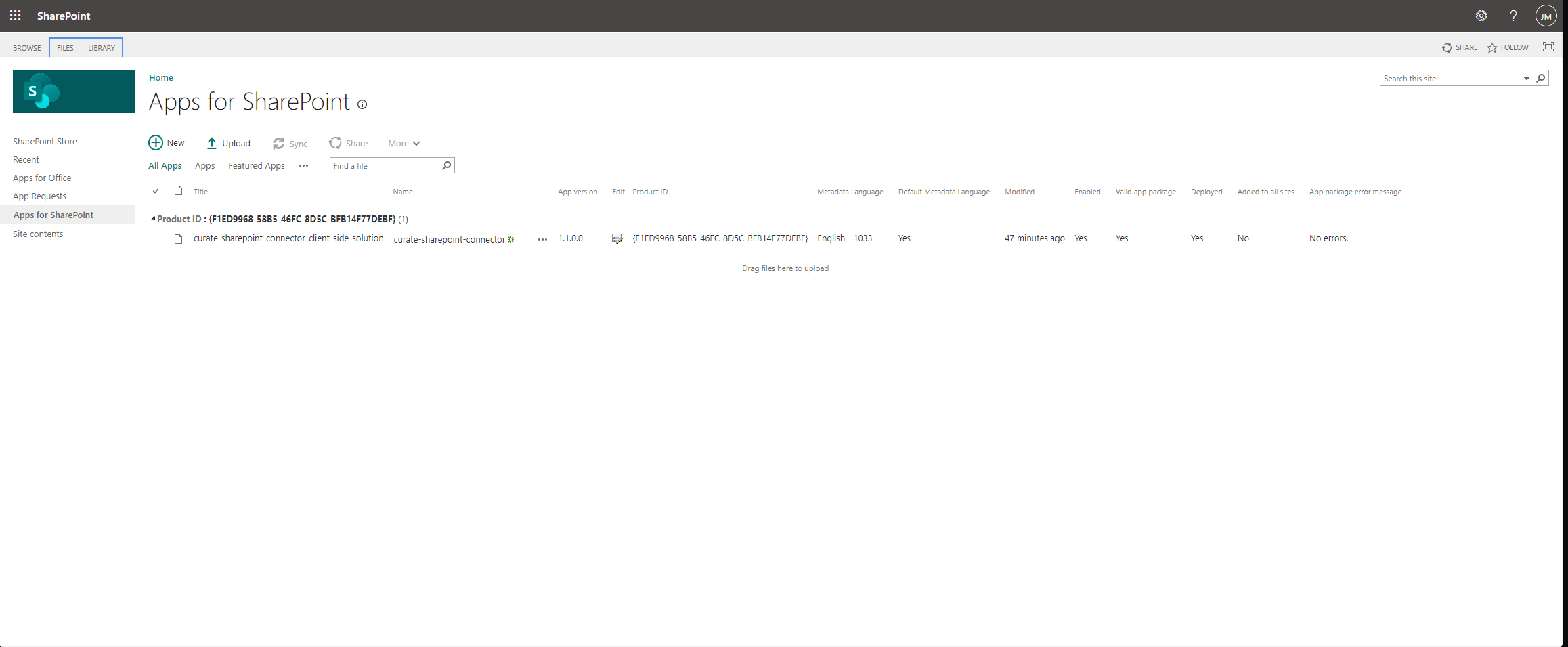
Once the extension has been installed, you will be able to see the Curate integration in the SharePoint app catalog we navigated to earlier. You should see "yes" underneath the "Enabled", "Valid app package" and "Deployed" columns, "No" under the "Added to all sites" column, and "No errors" under the "App package error message" column. This confirms that the extension has been successfully installed.
Adding the SharePoint extension to your site
To add the Curate integration to your site, follow the instructions below:
- Log in to your SharePoint environment.
- Select the site from which you would like to use the Curate integration.
- Find and select the "Site Contents" menu from the main site areas navigation strip.
You should find the Curate SharePoint extension in the list of available site content.
You can now simply select the Curate SharePoint extension and click the "Add" button. This will add the Curate SharePoint extension to your site.
At this point, it's a good idea to perform a hard-refresh in your web-browser by holding control/command, shift and pressing r.
To check that the installation worked as expected, you can now navigate to one of the Document Libraries you have set up in your SharePoint site. Once there, you should be able to select an item or multiple items and you will see the "Preserve" button in the SharePoint ribbon.
Adding the Status Column to your Document Library
To receive updates about the status of your deposits, you will need to add a new column to your Document Library. To add the column, follow these steps:
- Navigate to the Document Library/s in SharePoint from which you would like to send files to Curate.
- Click the "Add Column" button at the far right of the document list header.
- In the "New" dialog box, select "Single line of text" from the list of type options.
- Name the column "Preservation Status"
- Click "Save" to save the new column.
Sending files to Curate via SharePoint
To send a file to Curate from SharePoint, you just need to select the items you would like to send to Curate, then locate and select the "Preserve" button in the SharePoint ribbon. Provided you have set up the list containing your Curate details as explained in the Adding your Curate API key to SharePoint section, this will deposit the selected items into your Curate Quarantine space.
Receiving files from Curate via SharePoint
Once you or someone in your organisation has sent some content from SharePoint to Curate using the Curate SharePoint integration, it will automatically appear in your Curate Quarantine space in the "SharePoint Uploads" folder. This folder will be created automatically when a user deposits content into Curate from SharePoint. If you delete this folder, it will simply be recreated the next time you deposit content into Curate from SharePoint.
Each upload from SharePoint to Curate will be scoped to a unique folder within the SharePoint Uploads folder. This folder will be named with the date and time the upload was initiated. Each scoped folder will contain the entire selection of data that was uploaded in that operation. For example, if a user selects and chooses the "Preserve" option on a single file, the file will be deposited into a folder with the date and time within the "SharePoint Uploads" folder. If they instead select several files, and even folders, all of those items will be grouped into a single folder within the "SharePoint Uploads" folder.
Each scoped folder will also be tagged with a piece of metadata that lists the registered name and email address of the user who initiated the upload. This is to help you keep track of who uploaded what to Curate.